User Tutorial
Learn how to navigate the Trial Ghost interface, manage your active subscriptions, and set up calendar automations.
Adding a New Trial
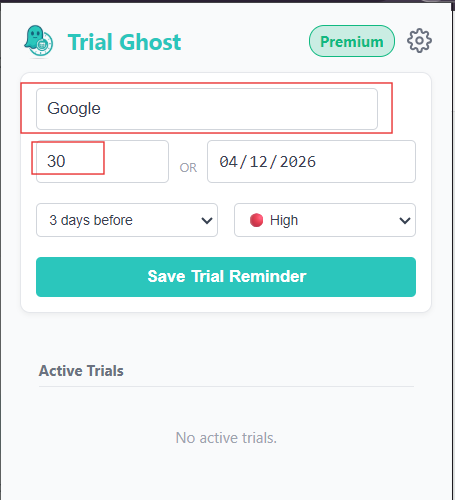
To start tracking a new subscription, click the Trial Ghost extension icon in your Chrome toolbar to open the main dashboard.
Click the "Add Trial" button. Enter the name of the service (e.g., "Netflix") and select the exact date the free trial expires or the date you will be charged.
Configuring the Reminder & Priority
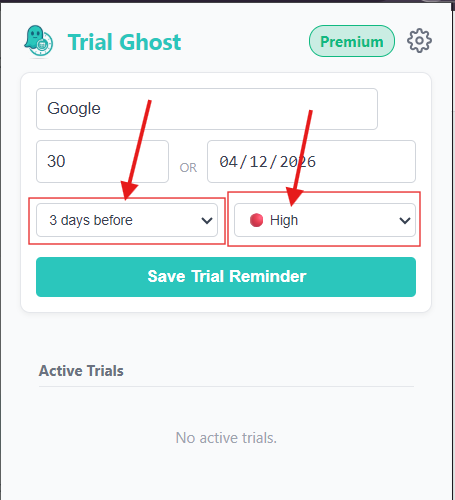
While filling out the Add Trial form, use the dropdown menus to customize how and when you want to be alerted.
Remind Me: Choose to receive your alert 1 day, 3 days, or 7 days before the expiration date.
Priority: Assign a High (Red), Medium (Yellow), or Low (Blue) tag. This color-codes the item on your dashboard so you can quickly see which subscriptions cost the most.
Managing Your Dashboard
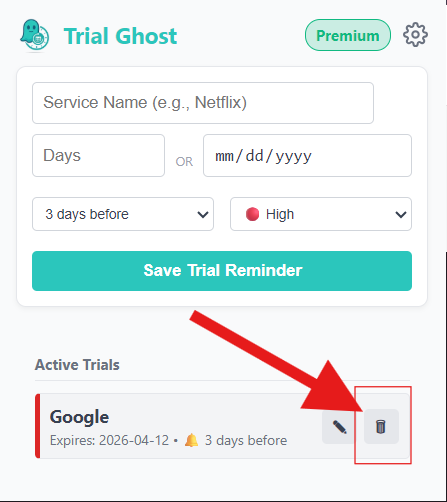
Once you click "Save," your trial will appear on the main dashboard list. Trial Ghost automatically sorts this list, keeping the subscriptions that are expiring the soonest at the very top.
If you cancel a trial early, simply hover over the item on your dashboard and click the Trash Can icon to delete it from your tracking list.
Enabling Google Calendar Sync (Premium)
If you purchased Trial Ghost Premium, you can sync your reminders to your phone.
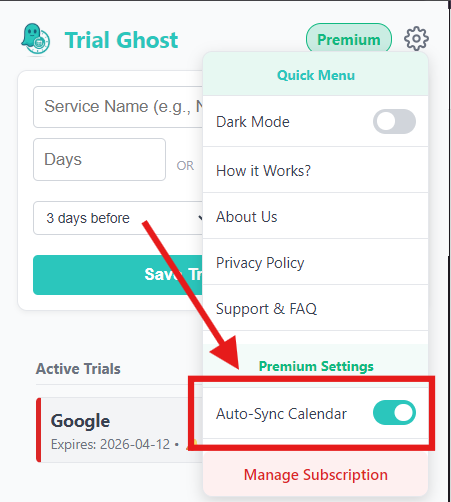
- Click the Settings (Gear) icon in the top right corner of the extension.
- Click Member Login and sign in with the Google Account you used to purchase Premium.
- Toggle the "Auto-Sync Calendar" switch to the ON position.
Now, whenever you add a trial, a cancellation reminder event will instantly appear on your Google Calendar!
Still need help?
If you are experiencing bugs or need help managing your Premium subscription, our support team is ready to assist.